

S4 Manager desktop client
S4 Manager is Bitiful's desktop client. It manages the files in your buckets in a graphical app: browse and preview, drag-and-drop uploads, resumable uploads for large files, rename and move, and share links. Besides Bitiful S4, it can connect to other S3-compatible object storage.
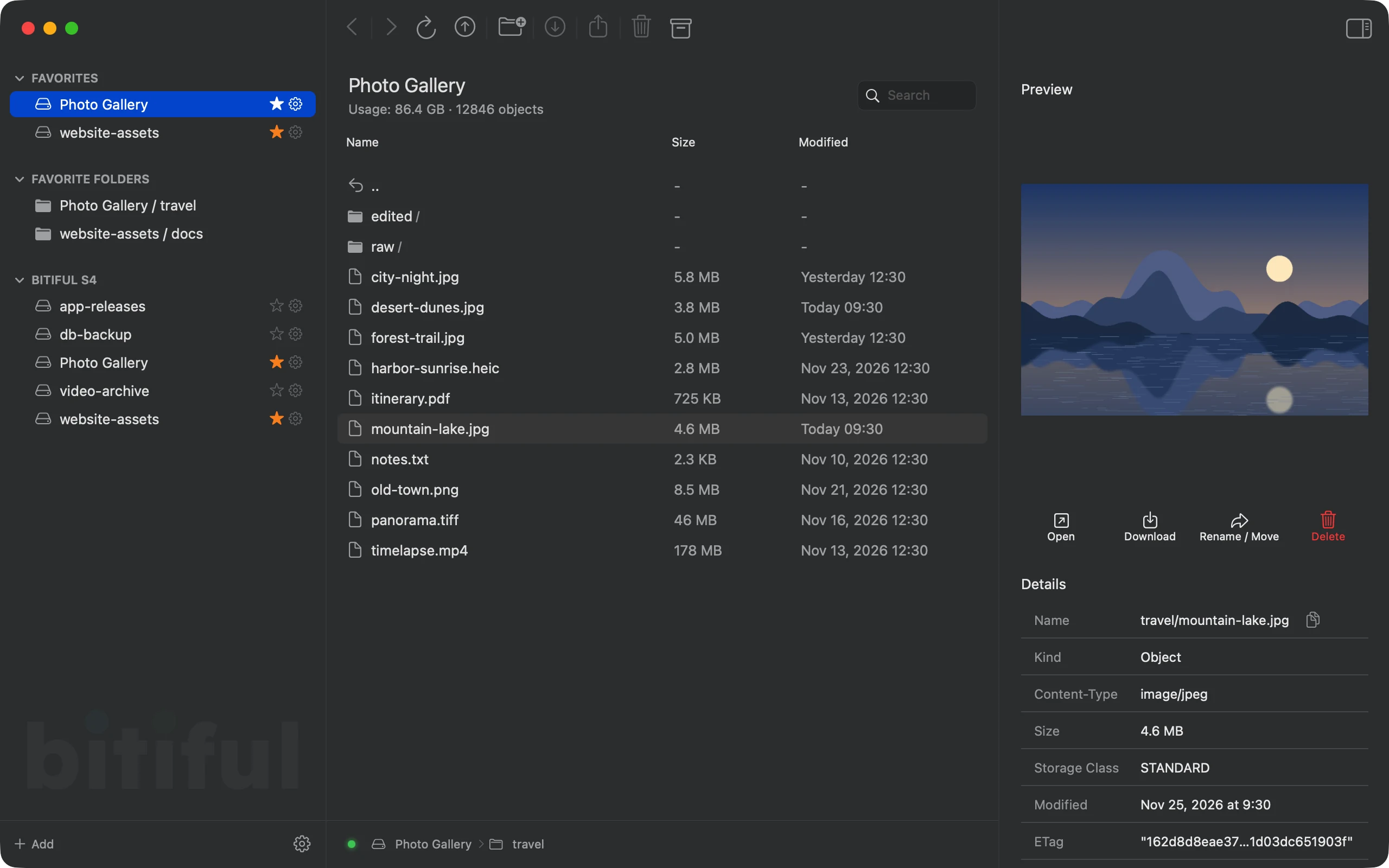
This guide uses the macOS version. The Windows version looks and works the same. For the few differences, see Platform differences.
Download
| System | Requirements | Download |
|---|---|---|
| macOS | macOS 13 or later, Apple silicon | S4Manager-macOS.dmg |
| Windows | 64-bit Windows, unzip and run | S4Manager-windows-x64.zip |
Open the DMG and drag S4Manager to Applications. The app is notarized by Apple and opens directly.
No installation is needed. Unzip the file to a permanent directory and run S4Manager.exe. If SmartScreen reports an unknown publisher on first run, click More info › Run anyway.
Add an account
Have a sub-user's AccessKey and SecretKey ready. See Sub-users and AccessKeys.
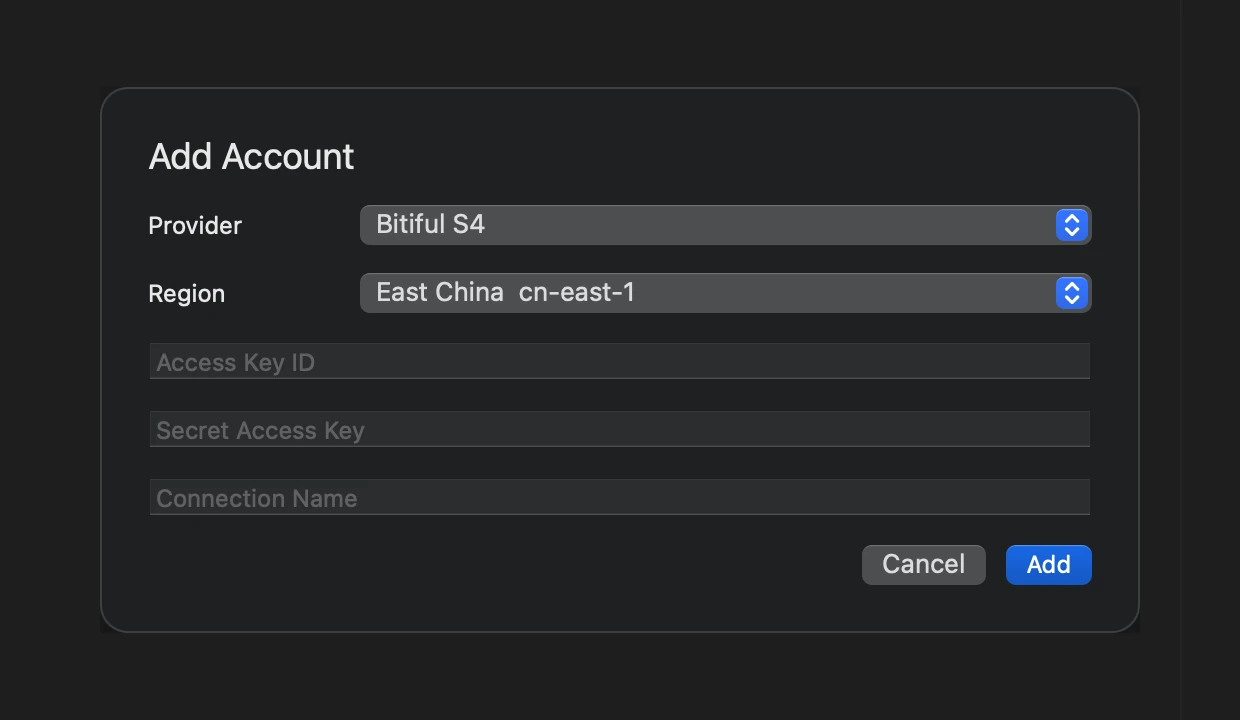
Only buckets the sub-user has been granted access to are listed. If none are found, grant access first.
Key points:
- You can add several accounts. Buckets are grouped by account on the left.
- The bucket list syncs every 60 seconds, so buckets created or granted in the console appear automatically.
- Settings are stored only on this computer. The SecretKey is kept in the system keychain (macOS) or Credential Manager (Windows) and is never written to the configuration file.
- Alibaba Cloud OSS, Tencent Cloud COS, Qiniu, and AWS S3 are also supported.
The main window
| Area | Purpose |
|---|---|
| Left | Favorite buckets, favorite folders, and the buckets of each account. Click the star to favorite a bucket, or the gear to open bucket settings. Right-click a bucket to use Test Connection |
| Toolbar | From left to right: back, forward, refresh, upload, new folder, download, share link, delete, multipart uploads. The preview panel toggle is on the far right |
| Middle | Files in the current directory. The bucket's total size and object count are shown below the title |
| Right | Preview, action buttons, and details of the selected file |
| Bottom | Status light and current path. Click any level of the path to jump back, or click the status light to open the Transfers window |