

Manage files with S4 Manager
Browse and search
- Double-click a folder to open it, and double-click
..to go up. You can also use back and forward in the toolbar, or click the path at the bottom. - Type the beginning of a file name in Search at the top right to search the current directory. Subdirectories are not searched.
- Right-click a folder and choose Favorite Folder to pin it on the left.
- Long lists load more as you scroll to the bottom.
Preview
Select a file to show its preview and details on the right. Press Space to open or close the preview panel.
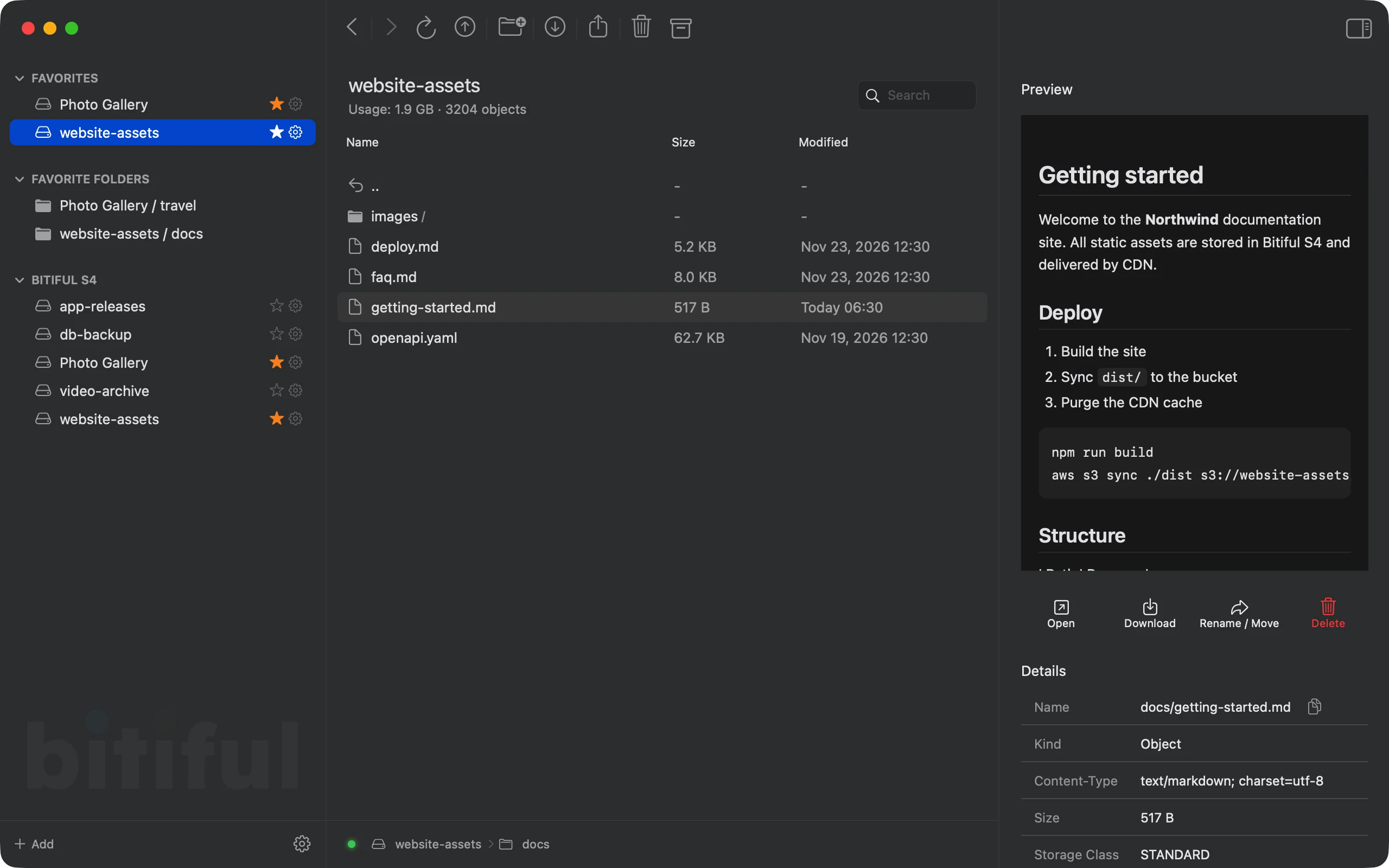
| Type | Supported formats |
|---|---|
| Images | jpg, png, gif, webp, heic, tiff, bmp, and more |
| Audio and video | mp4, mov, m4v, mp3, wav, m4a, flac, streamed as they play |
| Documents | pdf, txt, md, json, csv, yaml, xml, html, and common code files. Markdown and HTML can switch between source and rendered view |
Files over 50 MB are not previewed automatically (except audio and video). You can change the limit in Settings. Previews generate download traffic and requests.
Upload
Three ways:
- Drag files or folders into the window;
- Click the upload button in the toolbar and choose files;
- Copy files, an image, or text, then press
⌘V(Ctrl+Von Windows) in the list. Images and text are saved as a file named "Clipboard" plus the date and time.
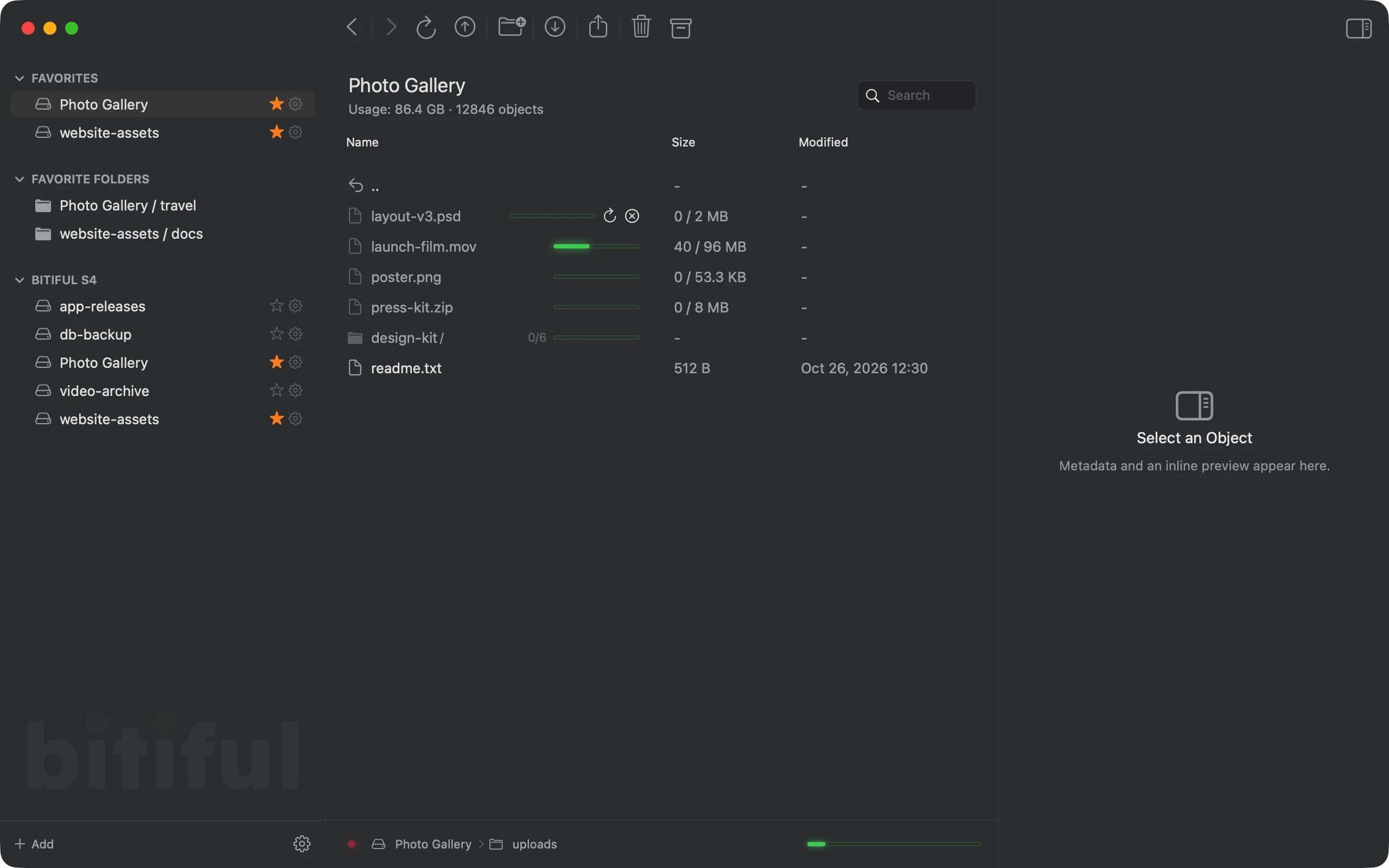
Files are uploaded to the directory that is open, with progress shown in the list.
Files with the same name
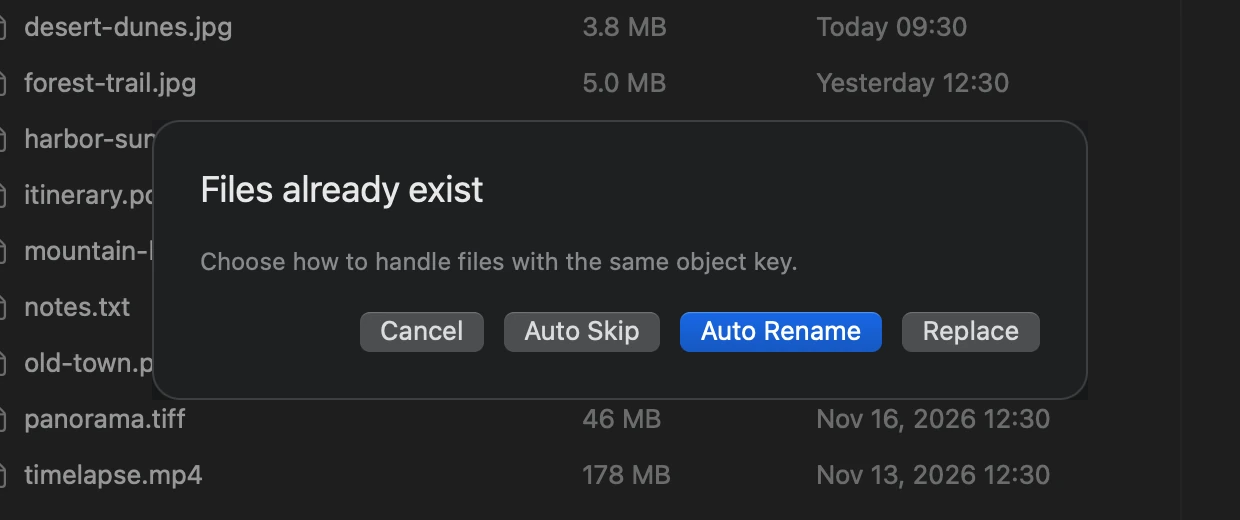
If a file with the same name already exists, you choose what to do:
| Option | Result |
|---|---|
| Auto Skip | Files with the same name are not uploaded; the rest are uploaded as usual |
| Auto Rename | A number is added to the file name, and both files are kept |
| Replace | The file in the bucket is overwritten and cannot be recovered |
Large files and resuming
- Files larger than the part size (10 MB by default) are uploaded in parts, with up to 4 parts at a time.
- Each part is retried automatically, up to 4 attempts, when the network drops, a request times out, or the server is busy.
- If a task still fails, the parts already uploaded are kept. Click Retry to continue from where it stopped, as long as the local file has not changed and the client has not quit.
Download
Select one or more files or folders, click Download, and choose where to save them. On macOS you can also drag files to Finder.
Double-clicking a file downloads it to a temporary directory and opens it with the default app. Changes you save there are not synced back to the bucket.
Rename and move
- Rename: select an item and press Return to edit its name in the list.
- Move: right-click and choose Rename / Move, then enter the full destination path, for example
archive/2026/photo.jpg.
Moving a single file is done on the server without re-uploading, so it is fast even for large files. Folders are moved file by file. If it fails halfway, retry to process only what is left.
Delete
Select items and click Delete, or press ⌘⌫ (Ctrl+Delete on Windows).
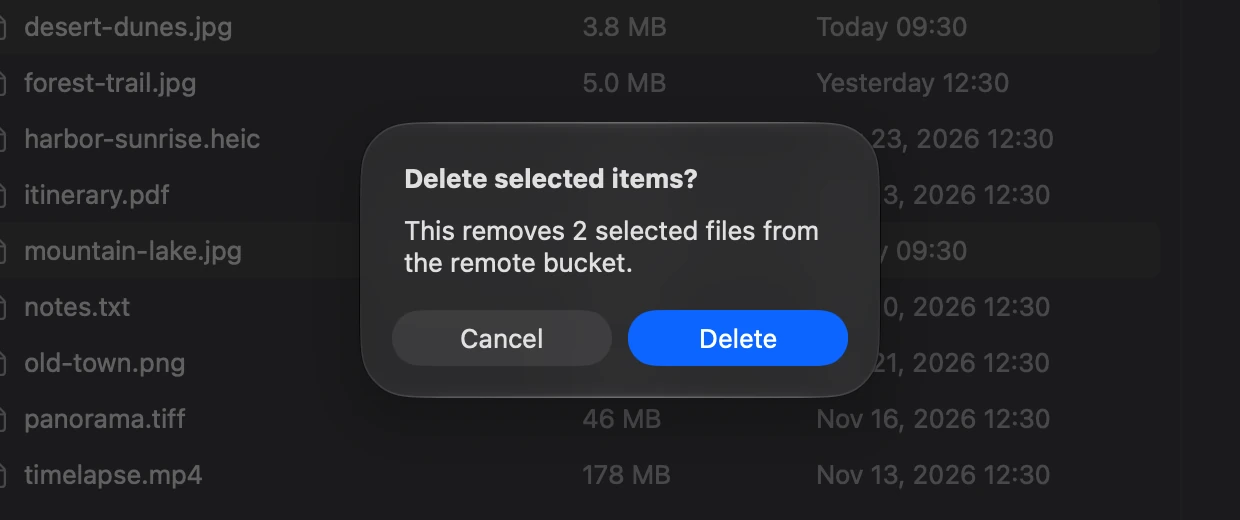
Deleting a folder deletes all files in it. S4 has no recycle bin, and deleted files cannot be recovered.
Edit metadata
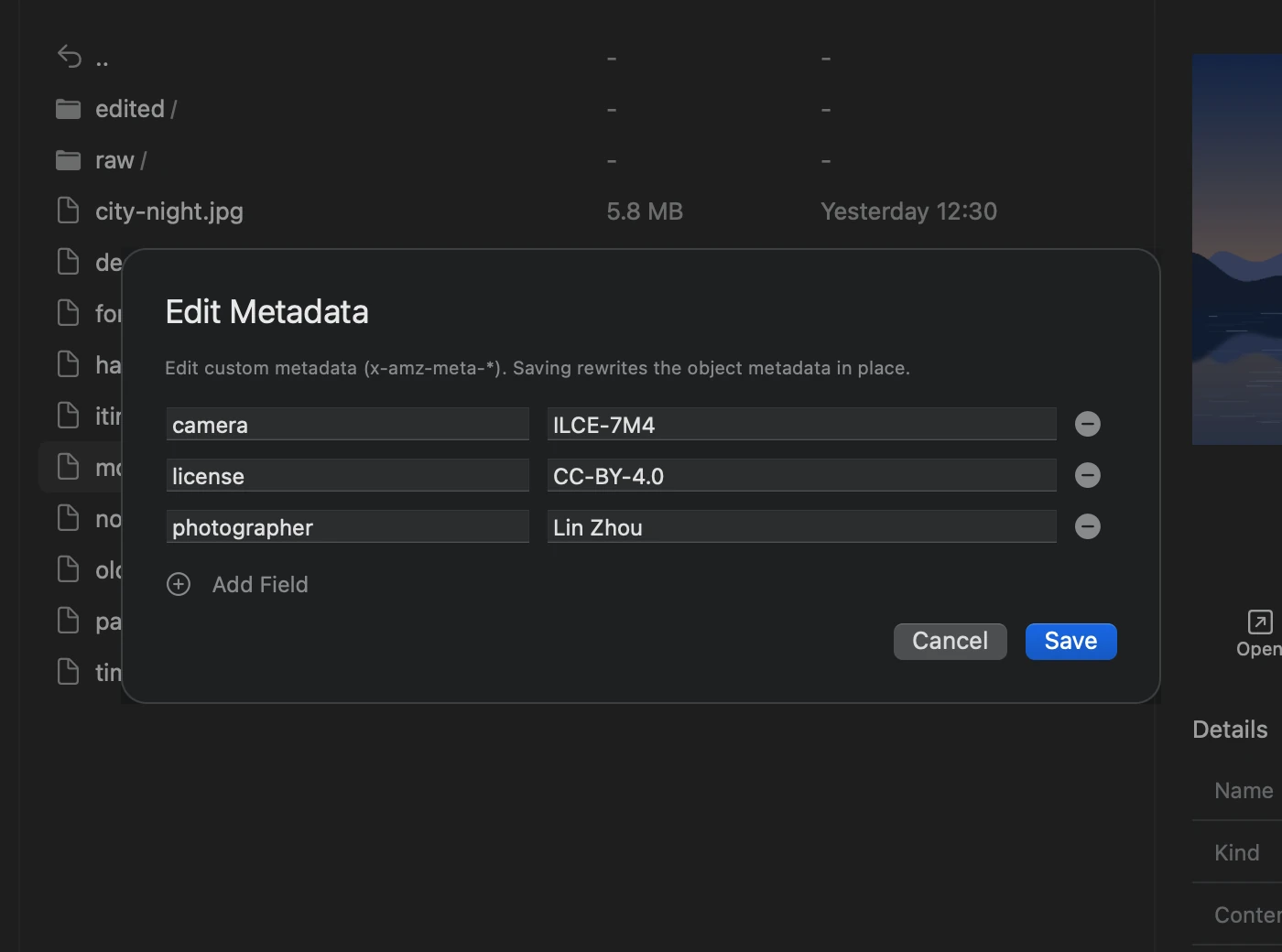
Select a file and click Edit Metadata at the bottom of Details on the right to add, change, or remove custom metadata (x-amz-meta-*).
Transfers window
Uploads, downloads, deletions, and renames all become tasks. Click the status light at the bottom to open the Transfers window:
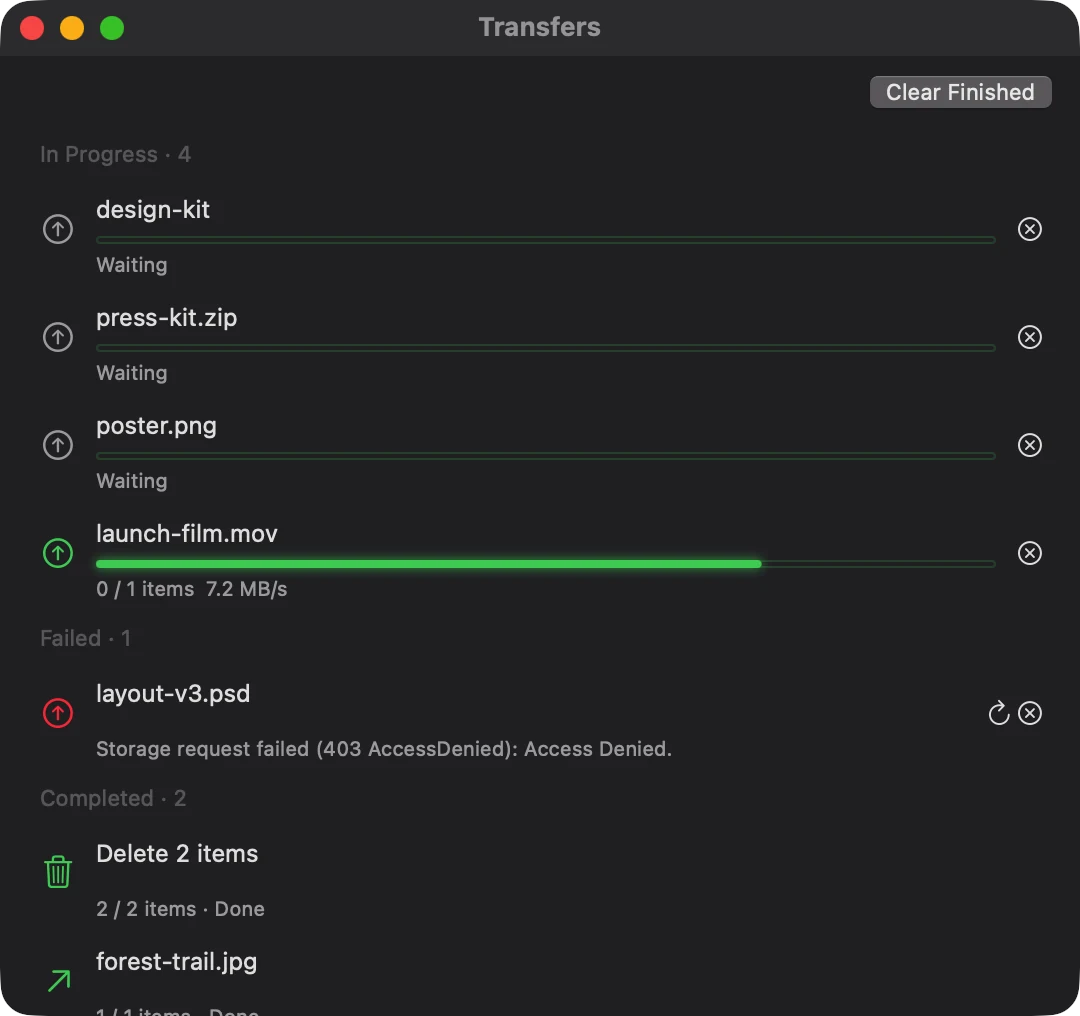
- Status light: green when idle, yellow when tasks are running, red when a task has failed.
- Tasks run one after another. You can cancel running tasks and retry failed ones.
- Canceling an upload also cleans up the parts already on the server.
The task list is cleared when you quit the client, and unfinished uploads have to start again.
Clean up incomplete multipart uploads
Interrupted multipart uploads keep occupying storage. Click Parts, the last button in the toolbar, to see all incomplete uploads in the current bucket:
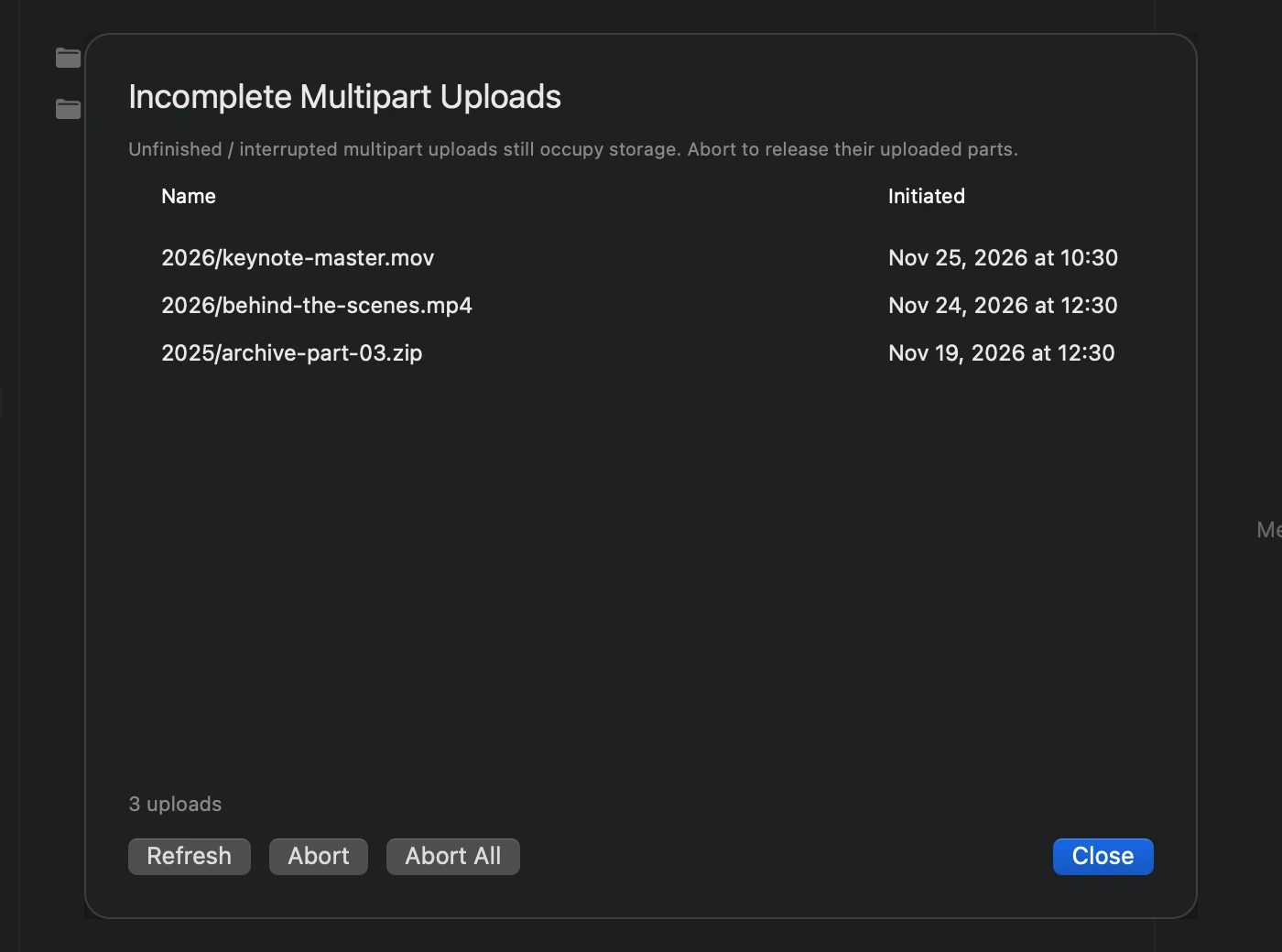
Select uploads and click Abort, or click Abort All to free the space. Uploads in progress from other programs also appear here, so check before aborting.