

Certificate Center
The Certificate Center manages all SSL certificates in your account in one place. You request, upload, and update every certificate HTTPS needs here, then pick it in CDN domains and bound bucket domains, or fetch it to your own servers through the API.
Entry point: Certificate Center › Certificate management (证书中心 › 证书管理) (open).
Two types of certificates
| Auto certificate | Custom certificate | |
|---|---|---|
| Source | Bitiful requests it from the certificate authority | You upload it |
| Certificate authority | Let's Encrypt, Google Trust Services | Any |
| Algorithm | RSA, ECC | Depends on the certificate |
| Domains | Single-domain, multi-domain, or wildcard, up to 20 per certificate | Depends on the certificate |
| Renewal | Renews automatically before expiry | Not supported. Replace it manually |
| Update to CDN domains | Automatic | Automatic after you modify the certificate |
| Update to bound bucket domains | Automatic | After you modify the certificate, save once again |
| Cost | Free quota, then pay per request. See Auto certificates | Free |
| Domain ICP filing | Not required to request a certificate | Not required to upload a certificate |
Connecting a domain to CDN still requires an ICP filing, regardless of the certificate.
Key features
- Fully automatic request and renewal of domain certificates (ACME)
- After an auto certificate renews, it's automatically updated to the associated CDN domains and bucket domains
- Supports Let's Encrypt and Google Trust Services
- Supports both RSA and ECC algorithms
- Supports multi-domain and wildcard certificates
- Supports the Certificate API, so you can use certificates on other platforms and your own servers
Quick tour
Make sure you have signed up for a Bitiful account and completed identity verification (you get the corresponding free tier right away).
Open certificate management
Sign in to the Bitiful console and click Certificate Center › Certificate management on the left (open).
Request an auto certificate
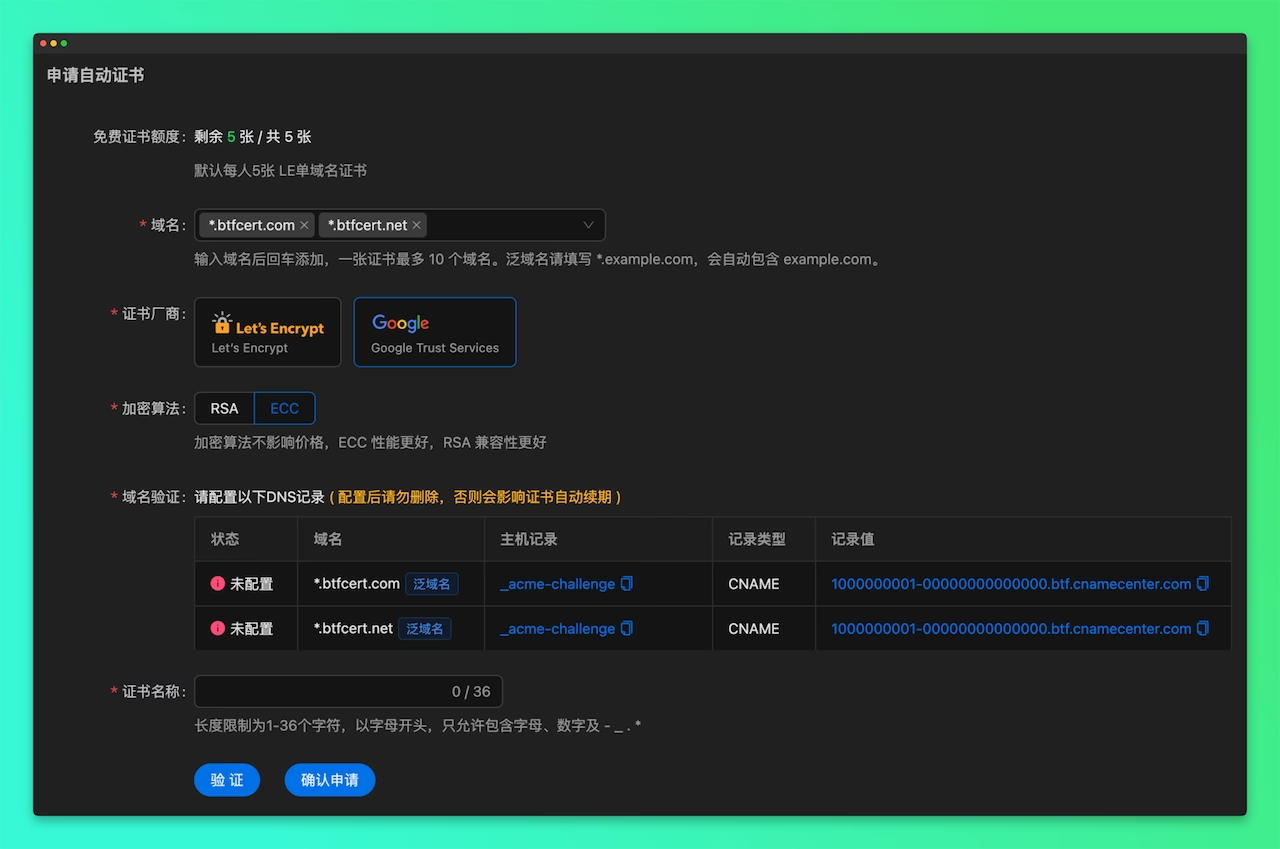
- Click Request auto certificate (申请自动证书) in the upper-right corner.
- Enter a domain (such as
cdn.example.com) and press Enter, then choose the Certificate vendor (证书厂商) and Algorithm (加密算法). - At your domain's DNS provider, add the CNAME record shown in the table.
- Enter a unique Certificate name (证书名称) (it can't be changed after creation).
- Click Verify (验证). When the status changes to Configured (已配置), click Confirm request (确认申请), check the fee, and confirm again.
- The request runs in the background and usually takes a few minutes. The window closes automatically. Refresh the list later to check.
For the full guide, see Request auto certificates.
Apply the certificate
Once a certificate is deployed, you can use it for:
- CDN domains in CDN;
- Domains bound in buckets;
- Your own servers, fetched through the Certificate API.
For the steps, see Deploy certificates.
Make sure the domain that uses the certificate is covered by the certificate.
Certificate list
| Column | Description |
|---|---|
| Certificate name | The dot before the name shows the status. Hover for an explanation. Click the copy icon to copy the name, which you'll use when calling the API. |
| Included domains (包含域名) | Shows the first domain and the number of domains. Hover over the info icon to see them all. |
| Associated projects (关联项目) | The CDN domains and bucket domains currently using this certificate. Click to jump. |
| Certificate source (证书来源) | Auto certificate (自动证书) or Custom certificate (自定义证书). The icon next to an auto certificate shows the DNS record status. Click it to see DNS configuration (DNS配置). |
| Certificate vendor | The issuing authority of an auto certificate. A custom certificate shows -. |
| Certificate type (证书类型) | The algorithm: RSA, ECDSA (that is, ECC), and so on. |
| Expiration time (过期时间) | When the current certificate expires. Shows - before one is issued. |
| Update time (更新时间) | The time of the latest update. |
| Actions (操作) | Modify (修改) (custom certificates only), Delete (删除). |
Dot statuses:
| Color | Status | Description |
|---|---|---|
| Green | Deployed (部署成功) | You can pick it in CDN and bucket domains. |
| Yellow | Deploying (部署中) | Being pushed. You can't modify or delete it. |
| Blue | Certificate request in progress, usually takes a few minutes (证书申请中,通常需要几分钟) | Being issued. You can't delete it. |
| Red | Certificate request failed, delete it and request again (证书申请失败,请删除后重新申请) | See What to do when a request fails. |
| Red | Deployment failed (部署失败) | Delete it and upload or request again. If it still fails, contact Bitiful. |
Delete a certificate
Click Delete and confirm. Deletion can't be undone.
- If the certificate is used by a CDN domain, you see "该证书已绑定加速域名,如需删除,请先解除绑定" (this certificate is bound to a CDN domain, unbind it before deleting). First switch the CDN domain to another certificate or turn off HTTPS, and delete after the deployment completes.
- Deletion doesn't check bucket domains. Before you delete, look at Associated projects and switch the bucket domain to another certificate first. Otherwise the bucket domain keeps using the old certificate until it expires and is no longer updated.
- After you delete an auto certificate, it no longer renews or incurs charges, and the free quota it used is released.
Expiration reminders
For your own certificates, an SMS reminder is sent to your account's phone number about 30 days, 7 days, and 1 day before expiry. Reminders are sent only for certificates that are in use by CDN domains or bucket domains and whose DNS already points to Bitiful. Auto certificates that meet the conditions for automatic renewal usually don't need a reminder.